
Overview & terminology
Split Order Payment lets a customer divide the cost of a product or an entire order across multiple people, each of whom pays their own share directly through your store. A few terms are used consistently throughout the plugin:
Requirements
- WordPress 3.6 or newer — tested through WordPress 7.1.1.
- WooCommerce 6.0.0 or newer — tested through WooCommerce 10.7.0, including both the classic and block-based Cart/Checkout.
- Compatible with WooCommerce’s High-Performance Order Storage (HPOS) — no action needed, it’s handled automatically.
Installation & activation
Uploading and activating a plugin works the same way for every WordPress plugin — if you haven’t done this before, see our general guide: How to install plugins in WordPress. The only thing to confirm here is that WooCommerce is already installed and active before you activate this plugin.
Once activated, a new Split Settings item appears in your WordPress admin menu — open it to configure the plugin using the settings below.
Settings reference
Open Split Settings in your admin menu. Settings are grouped into four tabs; every field saves together with one Save Settings button.
| Setting | Default | What it does |
|---|---|---|
| Show Split Option On | Single Product Page | Where the split opt-in appears: a product’s page, or the Cart page for the whole order. |
| Minimum Order Amount | 100 | Splitting only appears once the order/product total reaches this amount. |
| Maximum Participants | 5 | The most people (including the organiser) who can share one split. |
| Minimum Participants | 2 | At least this many participants are required to submit a split. |
| Allow Registered Users Only | Off | Requires every participant’s email to belong to an existing account. |
| Allow Guest Participants | Off | Lets participants pay via a secure one-time link, no account required. |
| Setting | Default | What it does |
|---|---|---|
| Allow Custom Amounts | Off | Lets the organiser set a different amount or percentage per participant, instead of an equal split. |
| Allow Pay On Behalf | Off | Lets the organiser pay a participant’s outstanding share from the order detail page. |
| Show Progress Bar | On | Shows a “who’s paid” progress bar on the order detail page. |
| Setting | Default | What it does |
|---|---|---|
| Notify All Participants on Completion | Off | Sends a confirmation email to every participant once all shares are paid. |
| Allow Organiser Message | Off | Shows a message field so the organiser can add a note to the invitation email. |
| From Name / From Email | Site name / admin email | Sender identity for split-payment emails. |
| Setting | Default | What it does |
|---|---|---|
| Send Reminder After (days) | 3 | Days before an unpaid participant gets an automatic reminder. 0 disables it. |
| Maximum Reminders to Send | 3 | Reminders stop after this many have gone out to a participant. |
| Auto-Cancel Unpaid Splits After (days) | 7 | Cancels the parent order and notifies the organiser if unpaid by this deadline. 0 disables it. |
Running it as a store owner
Enabling a product for splitting
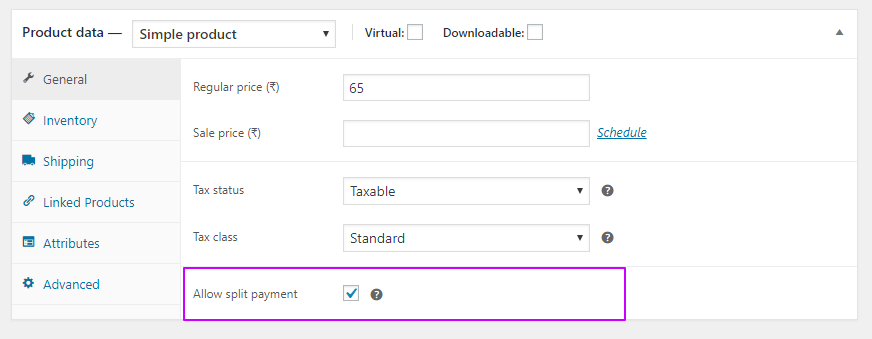
If Show Split Option On is set to Single Product Page, open the product in Products → Edit Product and check the “Allow split Payment” box that appears on the product data panel, shown below. If it’s set to Cart Page, splitting is available cart-wide once the minimum order amount is met — no per-product setup needed.
The Split Payment Dashboard
Under Split Settings → Dashboard, you get a live table of every split in progress: participant emails, amounts, payment status, and reminders sent. From there you can search and filter, manually mark a participant’s share as paid, send reminders (individually or in bulk), and jump straight to the parent order or a participant’s sub-order.
The participant experience
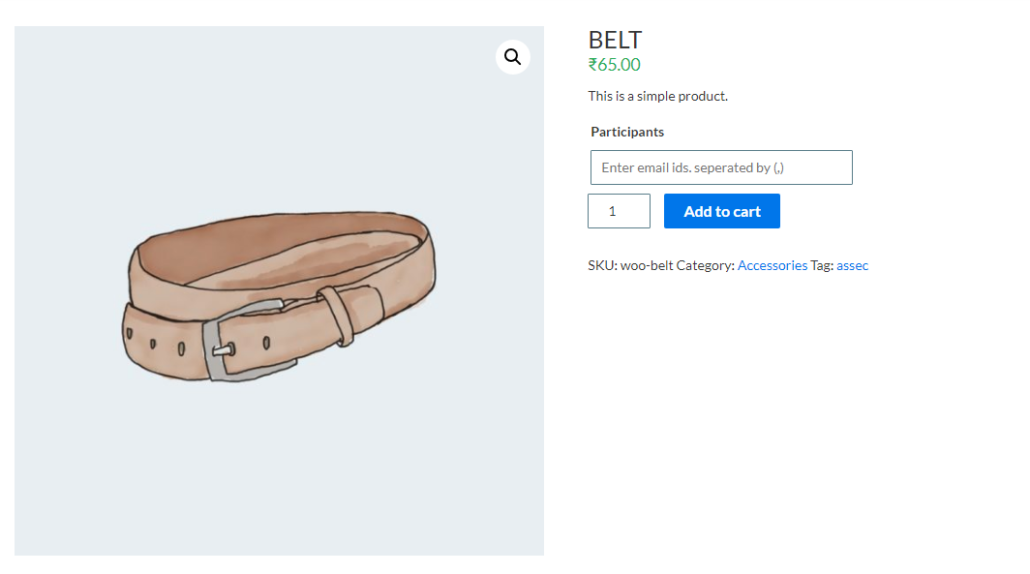
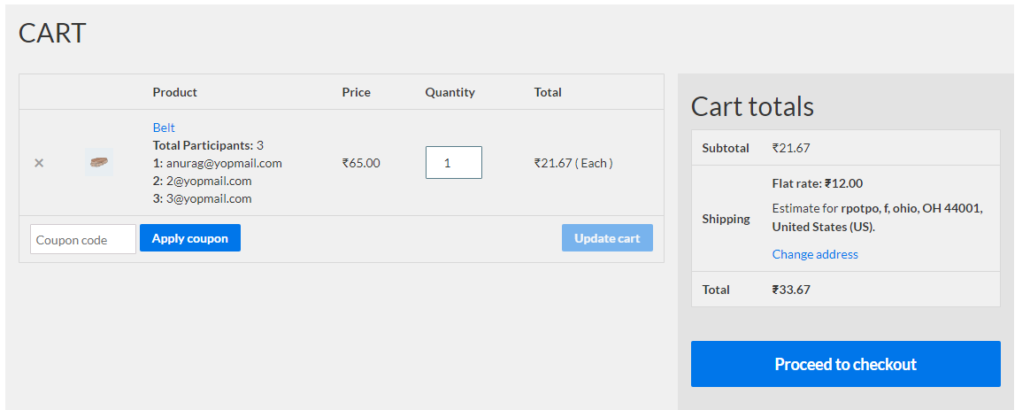
The organiser adds each participant by email (and phone, if required — see below), optionally includes themselves, and chooses how the cost divides. Each participant then receives an invitation and pays their own share through your store’s normal checkout, with a guest able to do so via a secure tokenised link if you’ve allowed it, no account required.
Emails, reminders & expiry
Four emails cover the whole lifecycle of a split, each customisable like any other WooCommerce email under WooCommerce → Settings → Emails:
- Invitation — sent to each participant when the split is created.
- Reminder — sent automatically to anyone who hasn’t paid yet, on the cadence set in Reminders & Expiry.
- Expiry — sent when a split is auto-cancelled after the configured number of days.
- Payment complete — sent once every participant has paid, if you’ve turned that on.
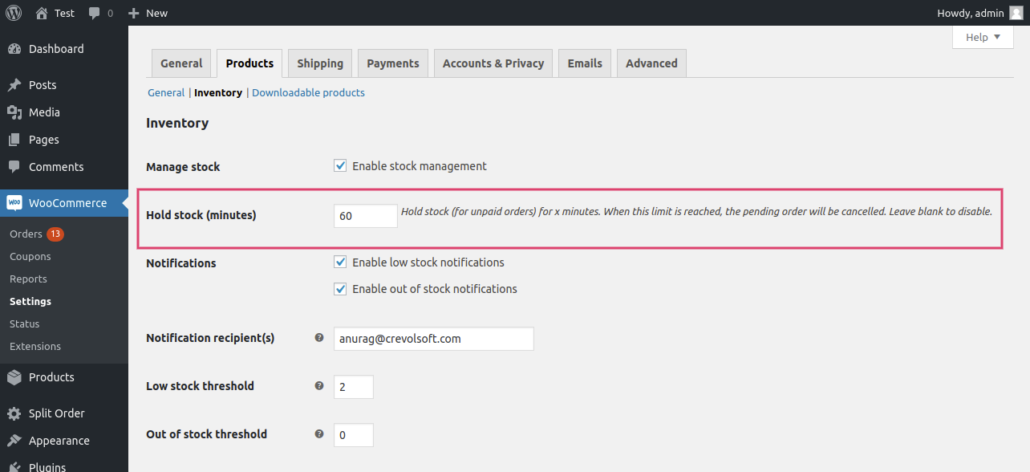
WooCommerce also has its own setting for how long an unpaid order holds stock before it’s automatically cancelled — if a participant’s sub-order isn’t paid within that window, WooCommerce cancels it the same way it would any other unpaid order.
Compatibility notes
- Classic and block-based Cart/Checkout: as of version 2.4.0, cart-wide splitting works correctly whether your Cart page uses the classic
[woocommerce_cart]shortcode or WooCommerce’s newer Cart block. Product-page splitting and the Checkout page already worked with both. - HPOS (High-Performance Order Storage): fully supported — all order data goes through WooCommerce’s own order API.
- WooCommerce Bookings: bookable products can be split the same way as regular products.
- Auto-charging a participant’s remaining balance (via Pay On Behalf) currently works with the Stripe gateway; participants on other gateways pay normally through checkout.
Now works with WooCommerce’s block-based Cart
Here’s what was actually tested and screenshotted, side by side with the classic Cart it’s changing nothing about:
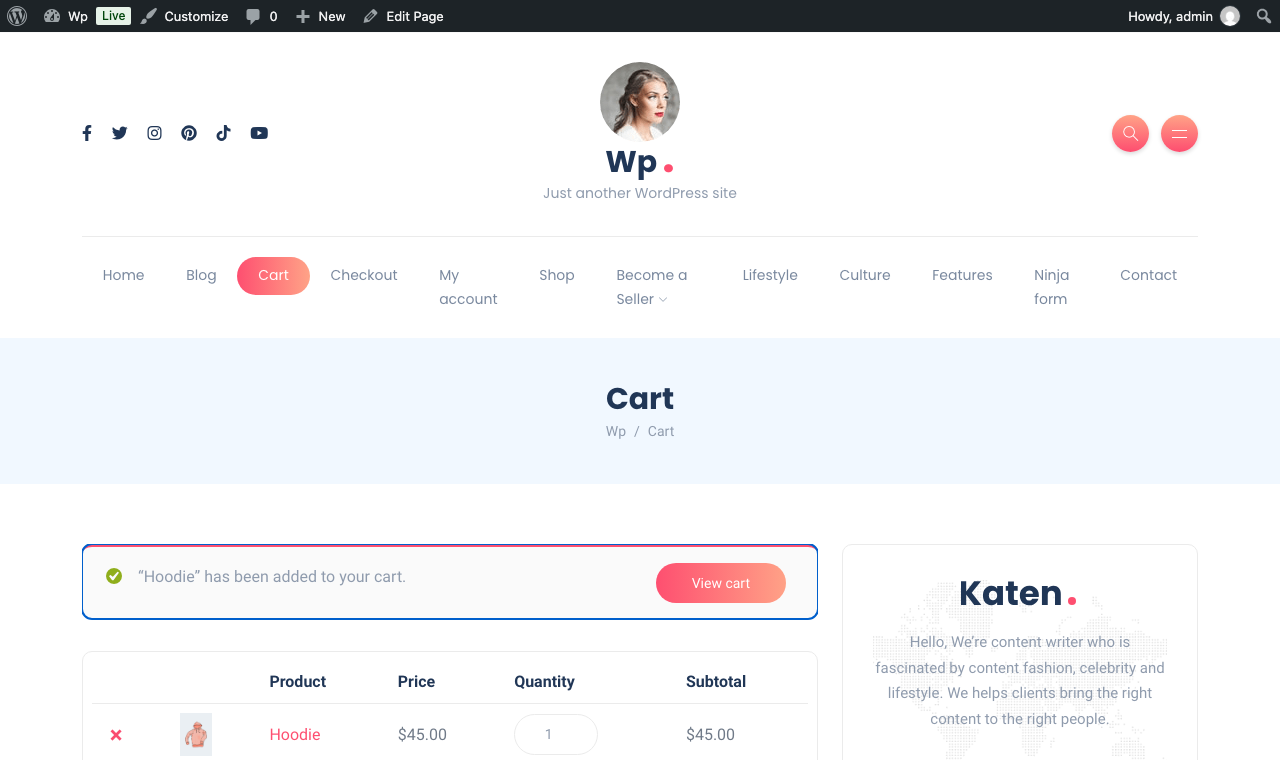
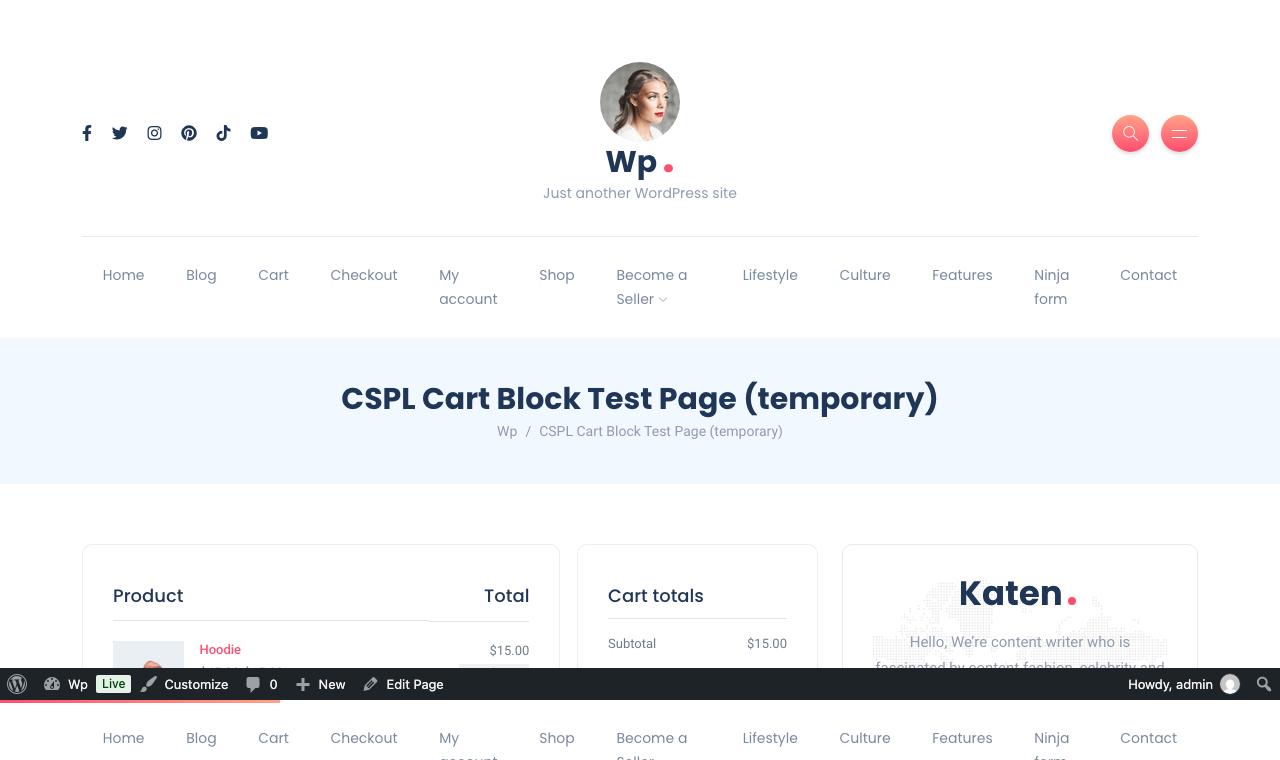
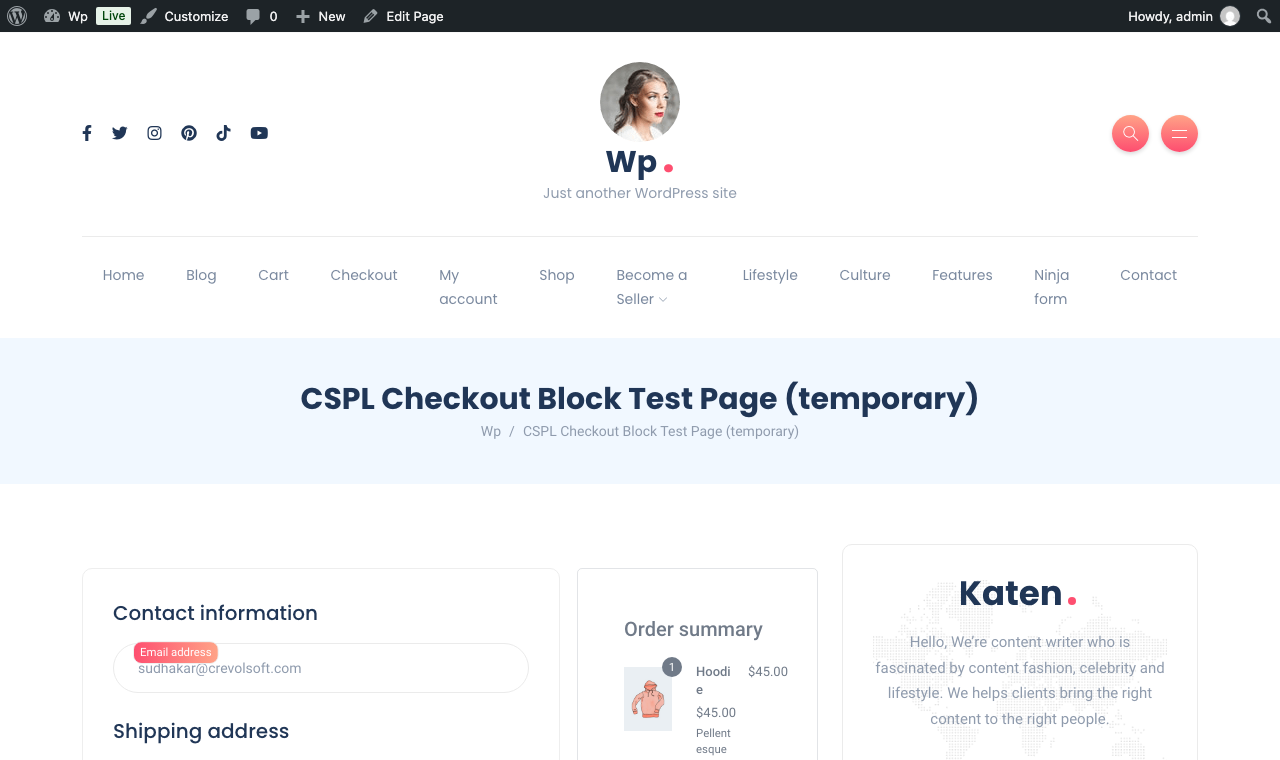
Tested with real, headless-browser automation (Playwright) against a live install — participants were actually added and removed and the price change was confirmed through the Store API’s own cart response, not just visually.
FAQ
Does a participant need a store account?
No, if you’ve enabled Allow Guest Participants — they pay through a secure one-time link instead.
What happens if someone never pays their share?
They receive reminder emails up to your configured maximum. If the order still isn’t fully paid by the expiry deadline, it’s automatically cancelled and the organiser is notified.
Can I split unevenly, not just equally?
Yes — turn on Allow Custom Amounts, and the organiser can set a specific amount or percentage per participant.
Does this work with my payment gateway?
Every participant checks out through your store’s normal payment methods. The one exception is the optional “auto-charge the rest” shortcut on the order page (Pay On Behalf), which is Stripe-specific today.
I saw a WhatsApp option mentioned — is that available now?
Not yet. As of 2.4.0 the plugin is built to support that kind of add-on cleanly when it ships; it isn’t bundled today.
Changelog
Settings page rebuilt as tabs; plugin made extensible for future add-ons.
Native support for WooCommerce’s block-based Cart in cart-wide split mode.
Added the Split Payment Dashboard, automatic reminder and expiry emails, Pay On Behalf, custom/percentage amounts, and an order-page progress bar.
Core split-payment functionality: per-product and per-order splitting, participant invitations, guest payment links, and HPOS support.
For any query/inquiry regarding this plugin, you can write us at support@crevolsoft.com or generate a ticket at support.crevolsoft.com.